Register customers
Correctly registering your customers is essential to keep an organized record of sales and avoid issues when invoicing.
The Register customers function lets you issue valid invoices with SIFEN, keep a complete purchase history, and send receipts automatically by email or WhatsApp. The whole process takes less than a minute.
When a customer isn’t correctly registered, you lose key information: you don’t know who bought from you, you won’t be able to issue an invoice with RUC later, and you won’t have a history to analyze your business.
How to register a new customer
There are two ways to register a customer on the platform, depending on when you need to do it.
Option 1: From the Customers module
This option is ideal when you want to load customers in advance.
In the side menu, go to Customers
Click + New customer in the top right corner
Option 2: During a sale
You can also register a customer directly while making a sale.
When creating a sale, the system asks you to select a customer to associate with the transaction. At that point:
Click Select customer
A list of already registered customers will be shown
If the customer doesn’t exist, click Register customer
Fill in the details and save
The customer will be registered automatically and associated with the current sale.
Search by RUC
The first step to register a customer is to search for their RUC.
Enter the customer’s RUC
Click Search
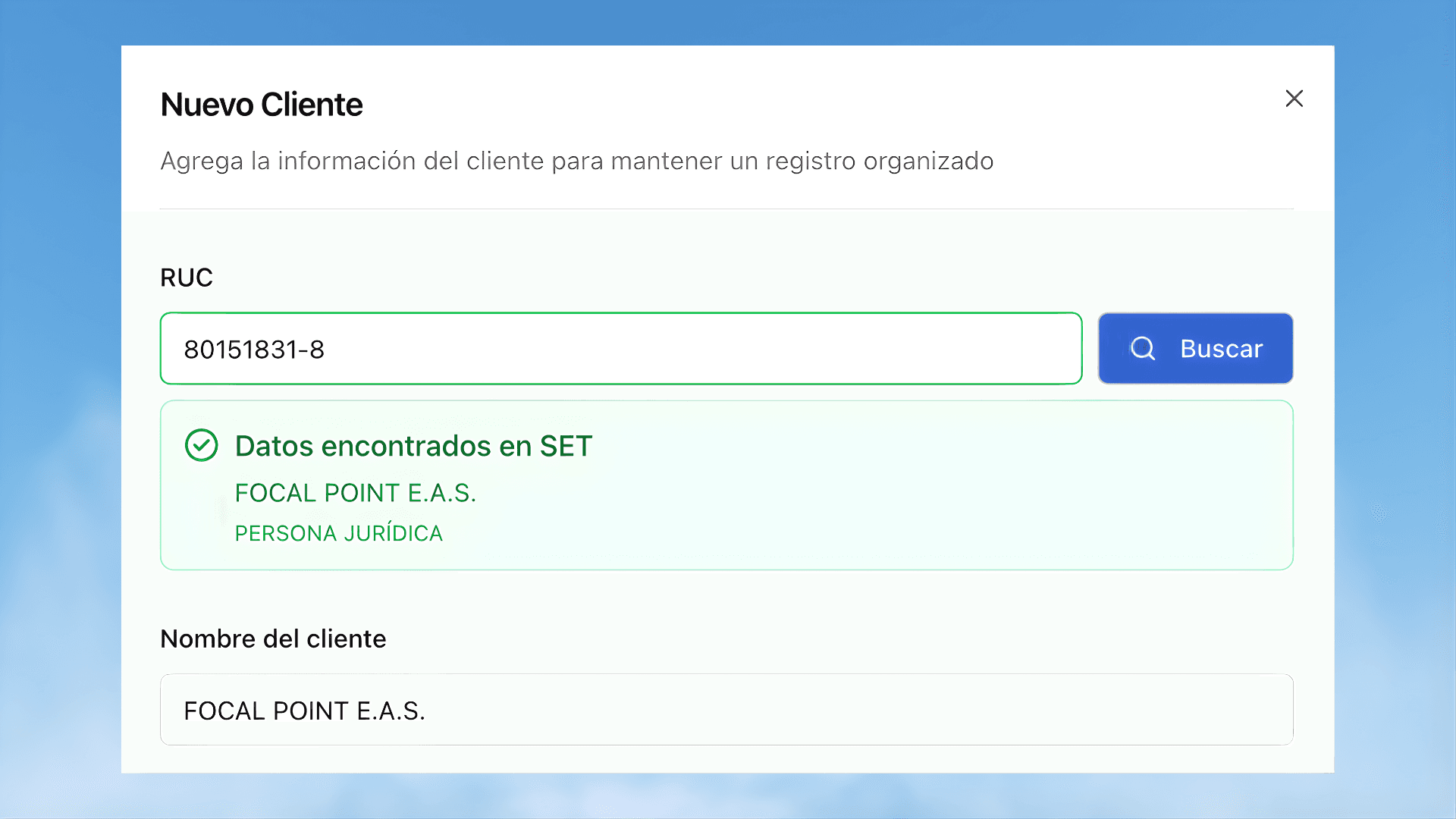
When you perform the search, Focal Point automatically queries the SET and can automatically fill in the customer’s details (name and RUC).
What happens when searching for a RUC
Depending on the search result, the following situations may occur:
Valid RUC
The RUC is valid and the system automatically retrieves the legal name and tax details from the SET.
Review the information and continue with the registration.
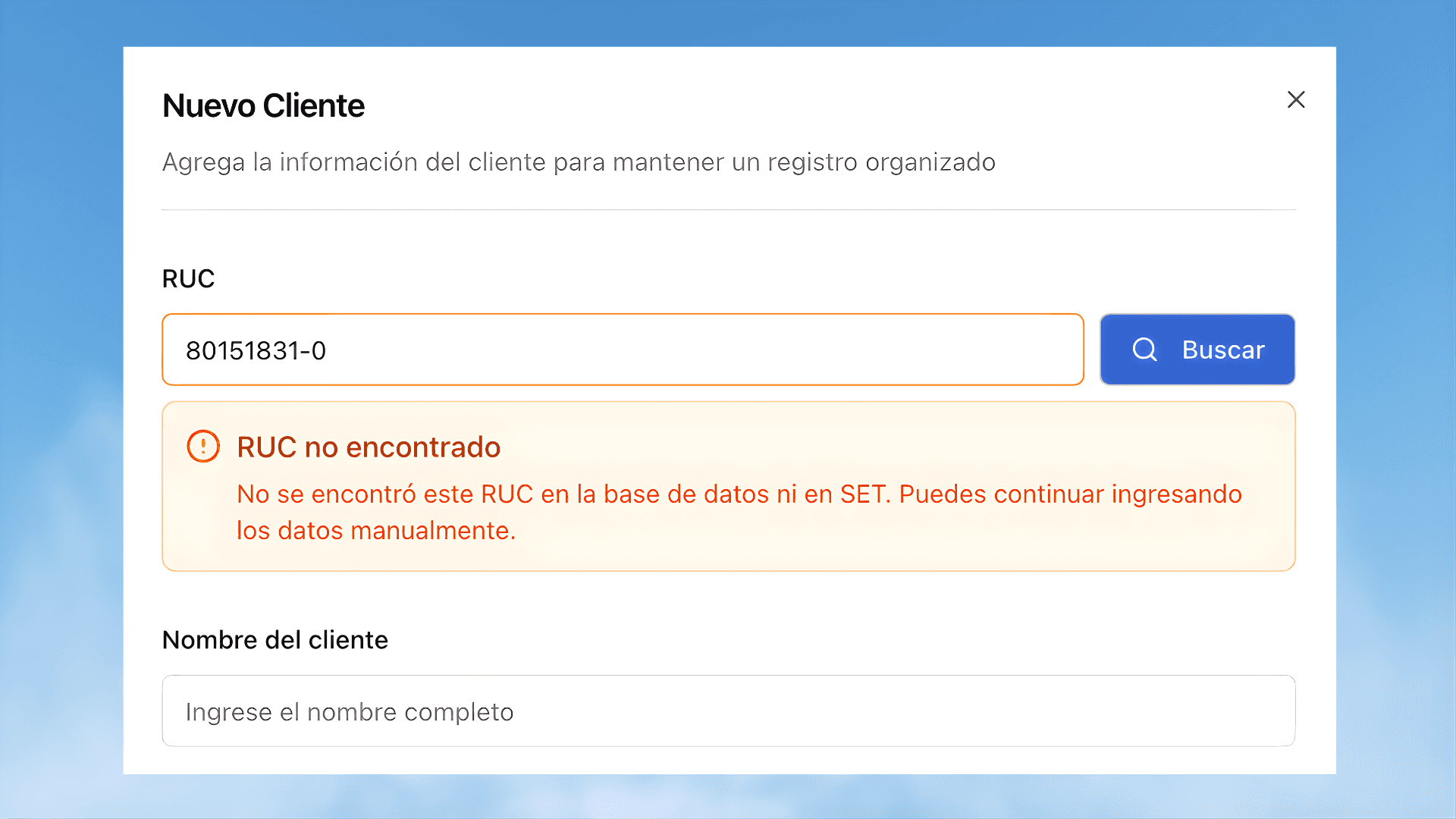
The RUC is not listed in the SET
The RUC is not found in the SET database.
In this case, you will need to enter the RUC and customer name manually.
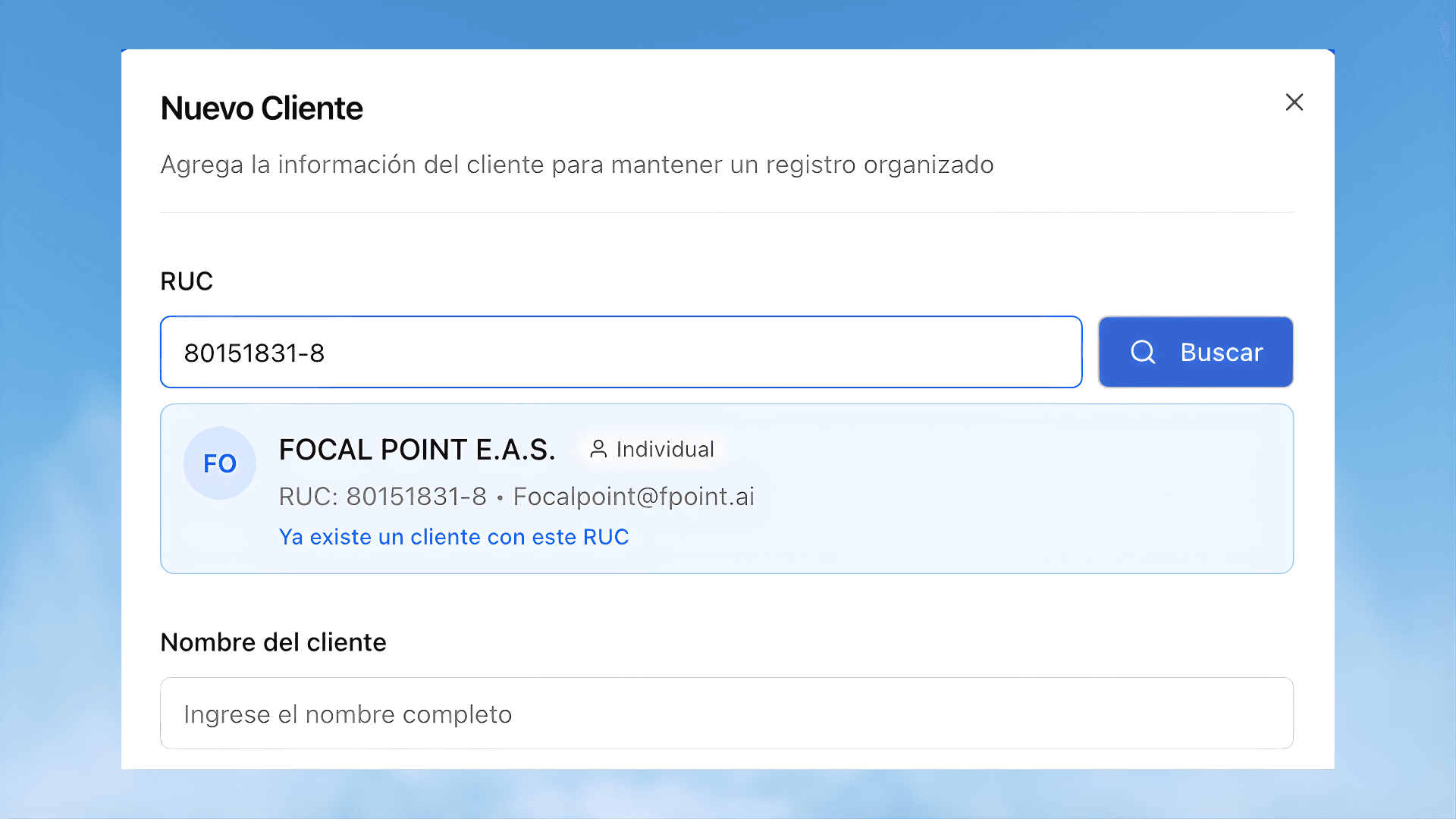
RUC already registered
The system detects that the RUC has already been registered.
In this case, do not continue with the registration and use the search tool to select the customer.
Complete the customer details
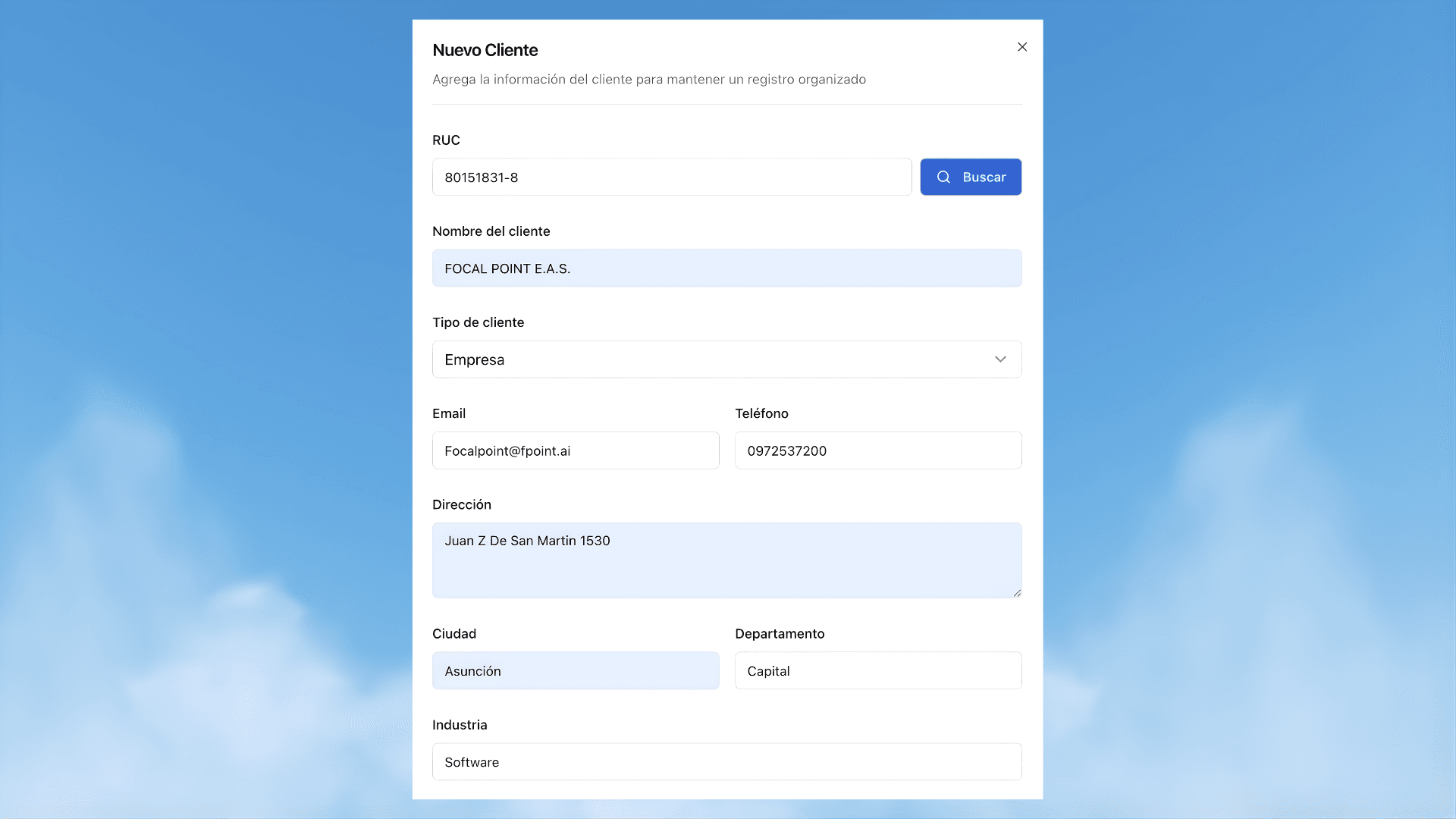
After searching for the RUC (whether with automatic data or entered manually), the fields to complete are the same in all cases.
Required information
Customer name / Legal name: Full name of the person or company. If the RUC was found in the SET, this field is completed automatically.
Customer type: Individual or company are available.
RUC: Customer’s RUC number.
Email: Required in order to automatically send the receipt to the customer.
Recommended information
Phone: Allows you to send receipts by WhatsApp and record this information in the customer list for better follow-up.
Address, city, and department: Help keep a more complete record of the customer.
Save the customer
Once the information is complete:
Check that the information is correct
Click Create customer
The customer will be registered and available to be selected in sales, issue invoices, and view in reports.
Common errors
A customer with that RUC already exists: Always search by RUC before creating a new customer.
Invoice rejected by SIFEN: Try using automatic search and do not modify the legal name obtained from the SET.
The customer does not receive receipts: Check that the email and phone number are entered correctly.